---
title: Typography
url: https://support.troopthemes.com/guide/maker/typography/
theme: Maker
theme_styles: Bloom
---
# Typography in Maker
**Edit theme** → **Theme settings** → **Typography**
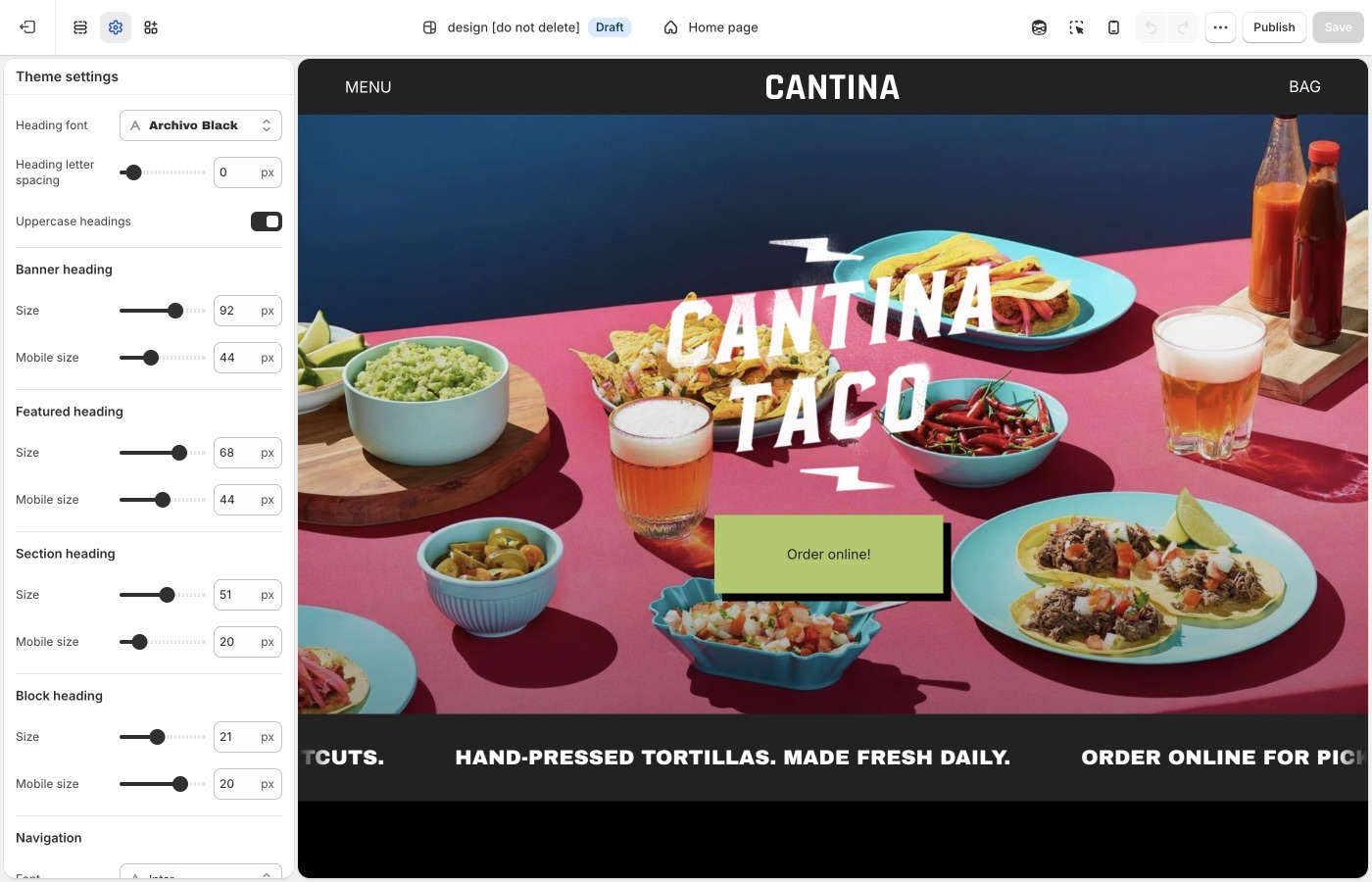
Heading, navigation, and body fonts, plus a type size ladder for each role.
## Theme settings → Typography (Maker)
### Fonts (Maker)
- **Heading font**: banners, section titles, overlays
- **Navigation font**: header and menus
- **Paragraph font**: body copy
One heading family and one body family is enough. A third display face fights Maker’s already-strong borders.
> **A custom font**
>
> To use a font file or a Google Font that the picker does not include, see [Custom fonts](#custom-fonts).
### Type roles (Maker)
Each role has a desktop size. Banner, featured, section, and block headings also have a **Mobile size**.
- **Banner heading**: slideshow and hero titles
- **Featured heading**: large titles below banner size
- **Section heading**: section titles
- **Block heading**: card and column titles (including overlays)
- **Navigation** / **Sub navigation**: header and dropdowns
- **Buttons**: button labels
- **Overline**: small labels above a heading
- **Paragraphs**: body copy
- **Paragraphs** → **Featured size**: copy on media
Keep a ladder: banner > featured > section > block ≈ paragraph. Overlay titles on product cards use this same system, so a huge block heading will dominate the grid.
> **Check mobile**
>
> Maker grids get dense on a phone. Lower banner and featured **Mobile size** if titles wrap into a stack.
### Letter spacing and uppercase (Maker)
Heading, button, and paragraph letter spacing, plus uppercase checkboxes, change Maker’s voice. Wide-tracked uppercase overlines fit the poster-like grid. Uppercase body copy does not.
### Text on images (Maker)
**Image darkness**, **Text shadows**, and **Translucent box around text** sit at the bottom of Typography. Overlay titles on cards and banners need enough darkness or a box so type remains readable on a pale photo.
## Custom fonts (Maker)
Shopify’s font picker in **Theme settings** → **Typography** covers most stores. Add a custom font only when you need a licensed font file or a Google Font that the picker does not include. You must have a license to host the font files. Custom fonts do not change checkout.
A custom font loads from a **Custom liquid** section at the top of the header group. You can load the font in one of three ways:
1. Upload a font file in **Content** → **Files**
2. Use a public URL to a hosted font file (for example, `.woff2`, `.woff`, `.ttf`, or `.otf`)
3. Use a font from [Google Fonts](https://fonts.google.com/)
### Set up a Custom liquid section (Maker)
1. In **Edit theme**, add a **Custom liquid** section at the top of the header group.
2. In that section’s settings, set **Spacing above**, **Spacing below**, and the mobile spacing options to **None** so the section does not add extra space.
Each option below pastes its font code into this **Custom liquid** section.
### Option 1: Upload a font file (Maker)
1. In the Shopify admin, open **Content** → **Files** and use **Upload files** to add your font (for example, `custom-font.woff2`).
2. Note the uploaded file name, including the file extension. You use that exact name in the next step.
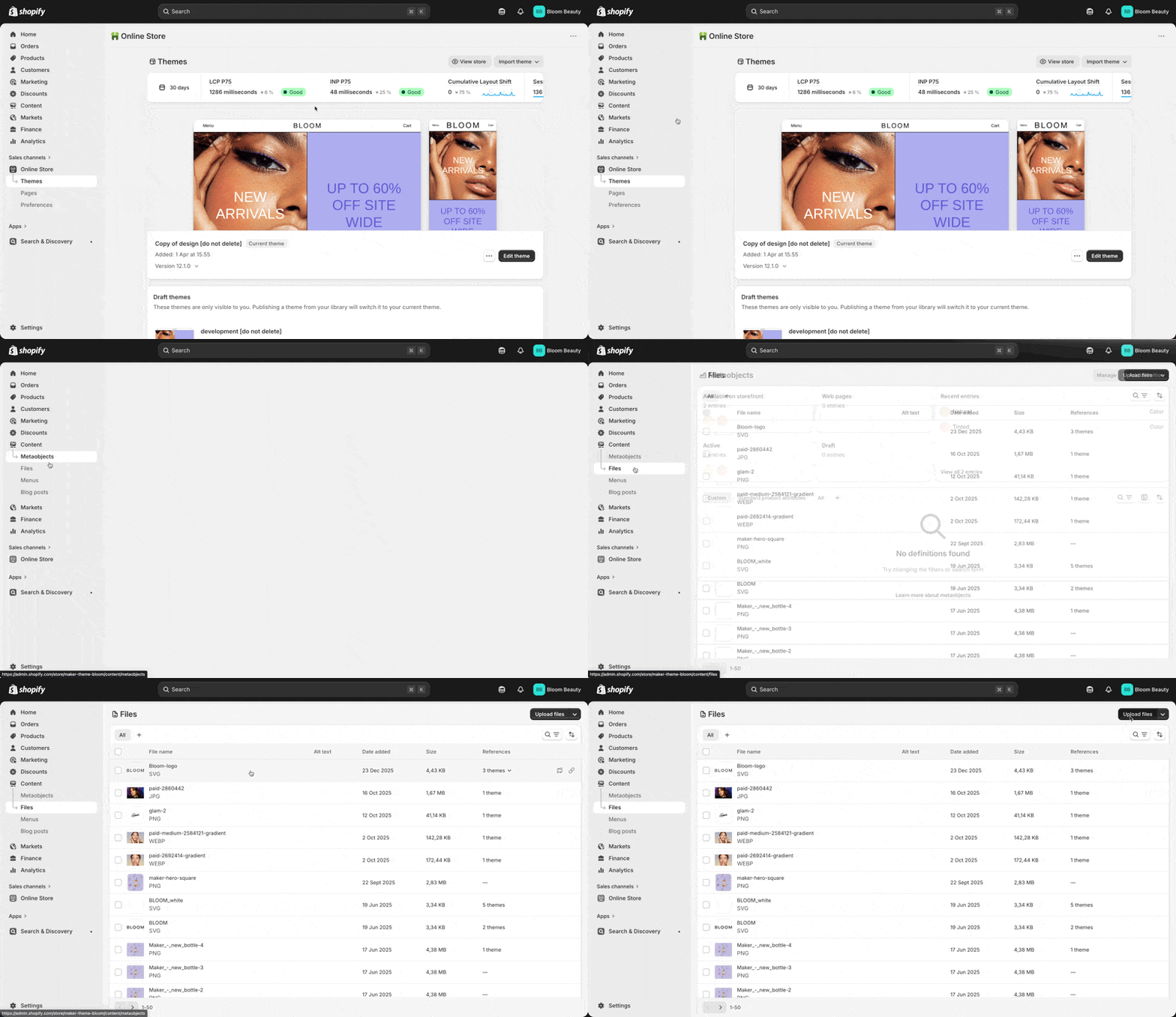
In the **Custom liquid** section, paste the following code. Set `custom_font_family` to your font’s name, and set `custom_font_file` to the uploaded file name (for example, `my-font.woff2`).
```liquid
{%- liquid
assign custom_font_family = 'Merchant Custom Sans'
assign custom_font_fallback = 'sans-serif'
assign custom_font_file = 'custom-font.woff2'
-%}
```
Click **Save** in the theme editor to apply the changes.
### Option 2: Use a URL to a hosted font (Maker)
Use this option when the font file is on a server or CDN and you have a direct `https://` link to the file.
In the **Custom liquid** section, paste the following code. Set `custom_font_family` to your font’s name, and set `custom_font_url` to the full address of the file (for example, `https://example.com/fonts/custom-font.woff2`).
```liquid
{%- liquid
assign custom_font_family = 'Merchant Custom Sans'
assign custom_font_fallback = 'sans-serif'
assign custom_font_url = 'https://example.com/fonts/custom-font.woff2'
-%}
```
Click **Save** in the theme editor to apply the changes.
### Option 3: Use Google Fonts (Maker)
On [Google Fonts](https://fonts.google.com/), pick a font, open **Get embed code**, and copy the stylesheet link. The link has the format `https://fonts.googleapis.com/css2?family=...&display=swap`.
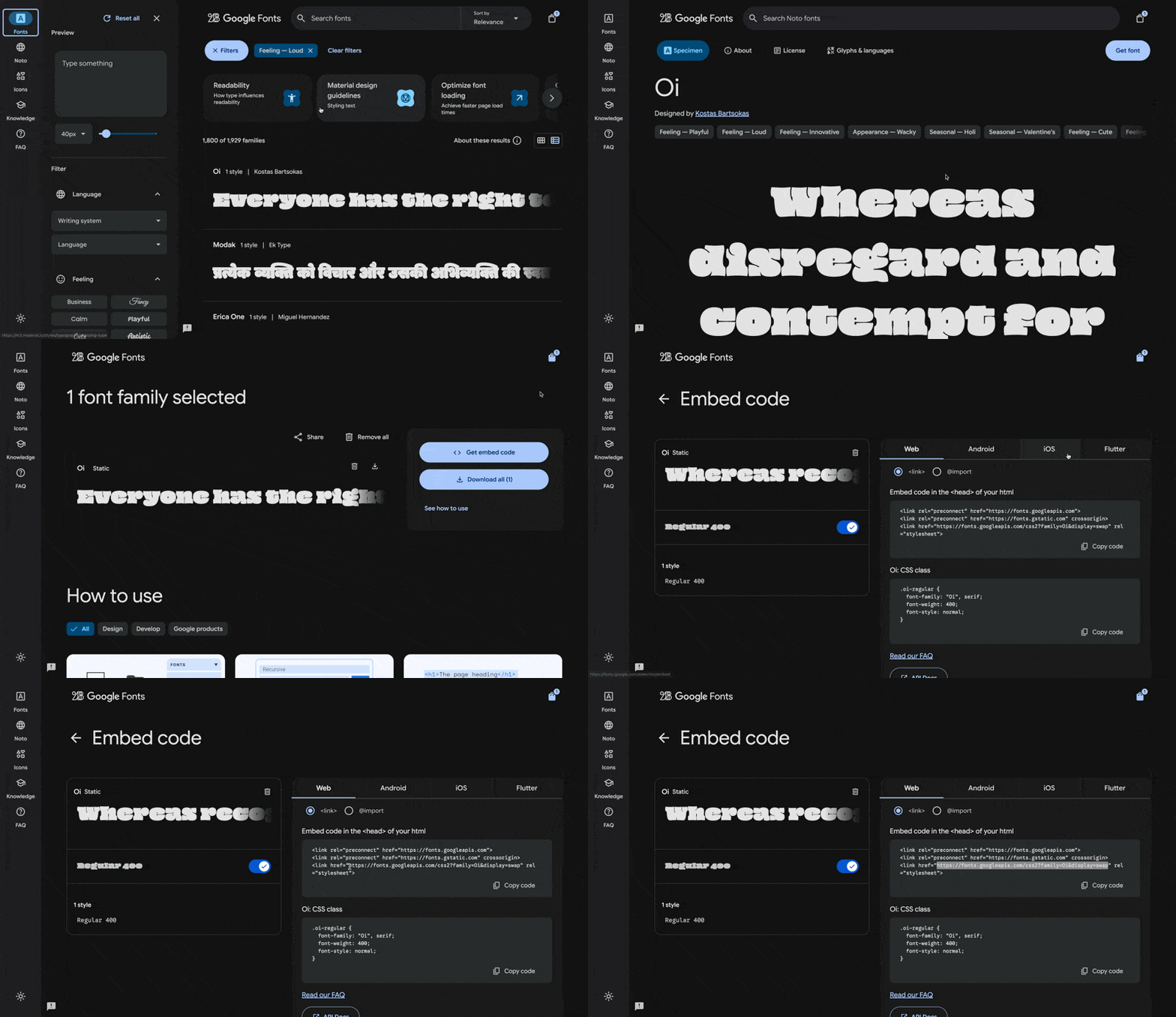
In the **Custom liquid** section, paste the following code. Set `custom_font_url` to the stylesheet link, and set `custom_font_family` to the font’s name as Google Fonts shows it. The example uses the font Oi.
```liquid
{%- liquid
assign custom_font_family = 'Oi'
assign custom_font_fallback = 'sans-serif'
assign custom_font_url = 'https://fonts.googleapis.com/css2?family=Oi&display=swap'
-%}
```
Click **Save** in the theme editor to apply the changes.
### Deprecated fonts in Shopify’s library (Maker)
Shopify sometimes deprecates fonts in its font library. A deprecated font can disappear from the font picker in **Theme settings** → **Typography** or stop loading as before. See [Deprecated fonts](https://shopify.dev/docs/storefronts/themes/architecture/settings/fonts#deprecated-fonts) in Shopify’s font documentation for the affected typefaces.
To replace a deprecated font, pick another font from the current library in **Theme settings** → **Typography**. To keep the same typeface, load it as a custom font with one of the options above.
## Ask Sidekick  (Maker)
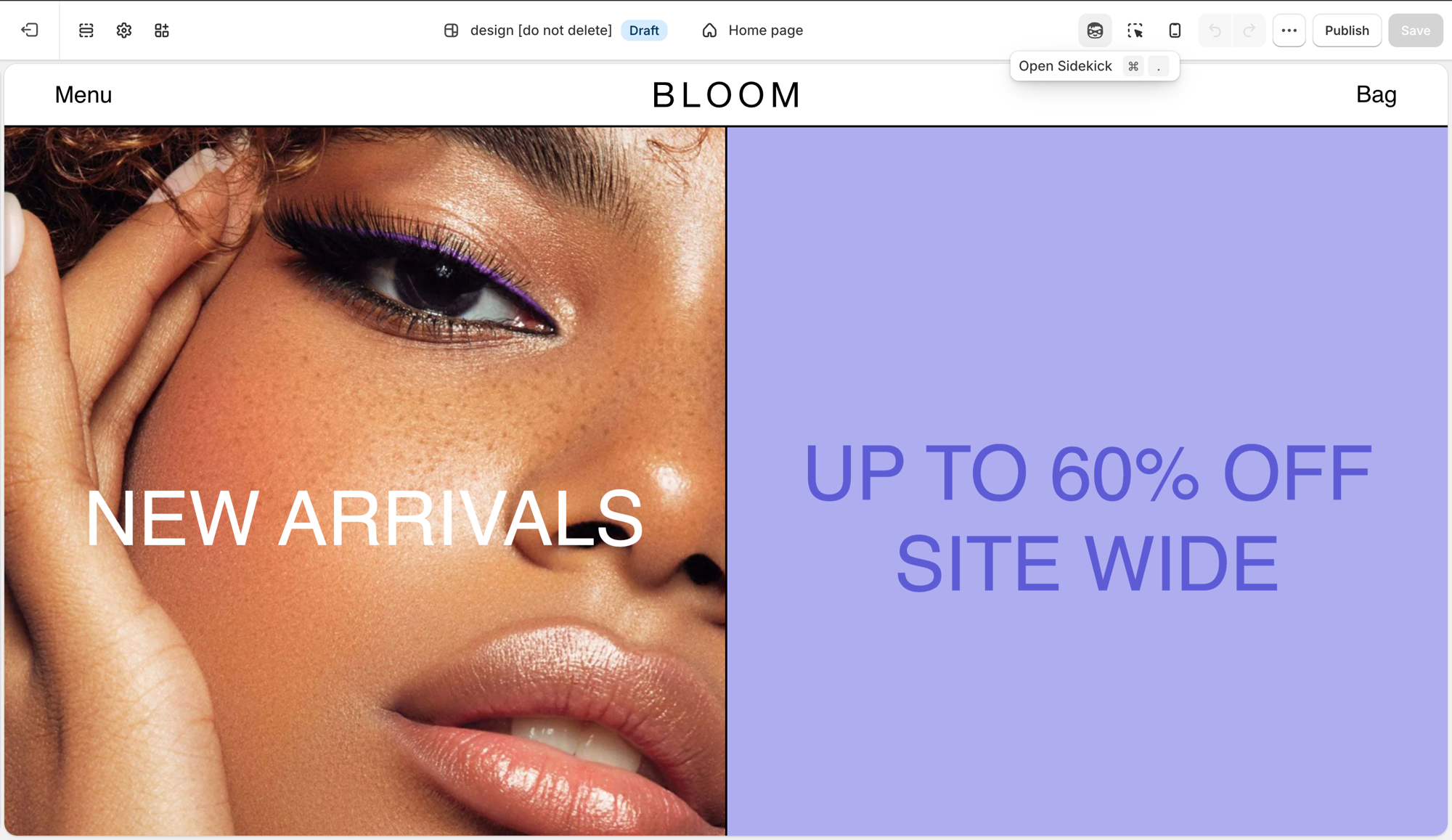
Open [Sidekick](https://help.shopify.com/en/manual/shopify-admin/productivity-tools/sidekick) from the theme editor toolbar (top right, next to the device preview icon), or press `⌘.` (`Ctrl+.` on Windows). Ask it for a font pairing that fits your brand.
> "Suggest a Heading font and Paragraph font pairing for a handmade, craft-forward brand, keeping in mind Maker's borders are already a strong visual element."
It previews the pairing before you apply anything to Theme settings → Typography, faster than comparing font libraries by hand. If you're deciding whether a custom font is worth adding at all, it's also a reasonable place to ask.
## Troubleshooting (Maker)
- **Overlay titles are huge**: lower **Block heading**, not Banner heading. Cards use the block role.
- **Overlay titles are not readable on pale photos**: raise **Image darkness**, switch titles to **Below** in [Product grid](https://support.troopthemes.com/guide/maker/product-grid/), or strengthen the hover pane. Do not rely on hover alone; touch devices have no hover.
- **A header label is the wrong words**: [default theme content](https://support.troopthemes.com/guide/maker/change-default-text/), not Typography.
- **Custom font did nothing**: the **Custom liquid** section must be first in the header group, with all spacing set to **None**. See [Custom fonts](#custom-fonts).
- **Custom font only changed some text**: the snippet sets the heading, navigation, and paragraph font variables together. Remove the `:root` lines for the roles you do not want to change.
- **Custom font file returns a 404**: `custom_font_file` must match the file name in **Content** → **Files** exactly, including the extension.
- **Checkout font is unchanged**: this is expected. Custom fonts do not apply to checkout.
(Maker)
Open [Sidekick](https://help.shopify.com/en/manual/shopify-admin/productivity-tools/sidekick) from the theme editor toolbar (top right, next to the device preview icon), or press `⌘.` (`Ctrl+.` on Windows). Ask it for a font pairing that fits your brand.
> "Suggest a Heading font and Paragraph font pairing for a handmade, craft-forward brand, keeping in mind Maker's borders are already a strong visual element."
It previews the pairing before you apply anything to Theme settings → Typography, faster than comparing font libraries by hand. If you're deciding whether a custom font is worth adding at all, it's also a reasonable place to ask.

## Troubleshooting (Maker)
- **Overlay titles are huge**: lower **Block heading**, not Banner heading. Cards use the block role.
- **Overlay titles are not readable on pale photos**: raise **Image darkness**, switch titles to **Below** in [Product grid](https://support.troopthemes.com/guide/maker/product-grid/), or strengthen the hover pane. Do not rely on hover alone; touch devices have no hover.
- **A header label is the wrong words**: [default theme content](https://support.troopthemes.com/guide/maker/change-default-text/), not Typography.
- **Custom font did nothing**: the **Custom liquid** section must be first in the header group, with all spacing set to **None**. See [Custom fonts](#custom-fonts).
- **Custom font only changed some text**: the snippet sets the heading, navigation, and paragraph font variables together. Remove the `:root` lines for the roles you do not want to change.
- **Custom font file returns a 404**: `custom_font_file` must match the file name in **Content** → **Files** exactly, including the extension.
- **Checkout font is unchanged**: this is expected. Custom fonts do not apply to checkout.