Setting up FAQ or Collapsible Rows sections in Emerge
Add an FAQ section in Edit theme → Add section. Each row is a block with a heading plus rich text or a Shopify page.
Page bodies are edited in Online Store → Pages, not in the theme editor. Shopify Help Center, checkout, and metafield definitions are unchanged.
To add an FAQ section, open Edit theme, click Add section, and choose FAQ.
These sections use collapsible rows as blocks. Each row can include a heading and content. Add additional blocks to build a list of questions and answers, or to break down product details and materials.
Content types
Each block supports two content types:
- Rich text
- Added through the "Text" setting. Enter text directly in the text area, including links and formatting.
- Page content
- Added through the "Row content from page" setting. Select a page from the dropdown to display its content in the block. Pages can be created or edited in the Shopify admin, not in the theme editor.
Dynamic content with metafields
The first option, rich text, supports dynamic content with metafields. This lets you display content specific to the page you're viewing, or store-level information.
For example, on a product page, each product has a different name, description, and price. You can show that information in an FAQ section by connecting a metafield to the block.
You can add static text around metafield content for context, or display only the dynamic content. To learn more about metafields, visit Shopify's guide.
Ask Sidekick 
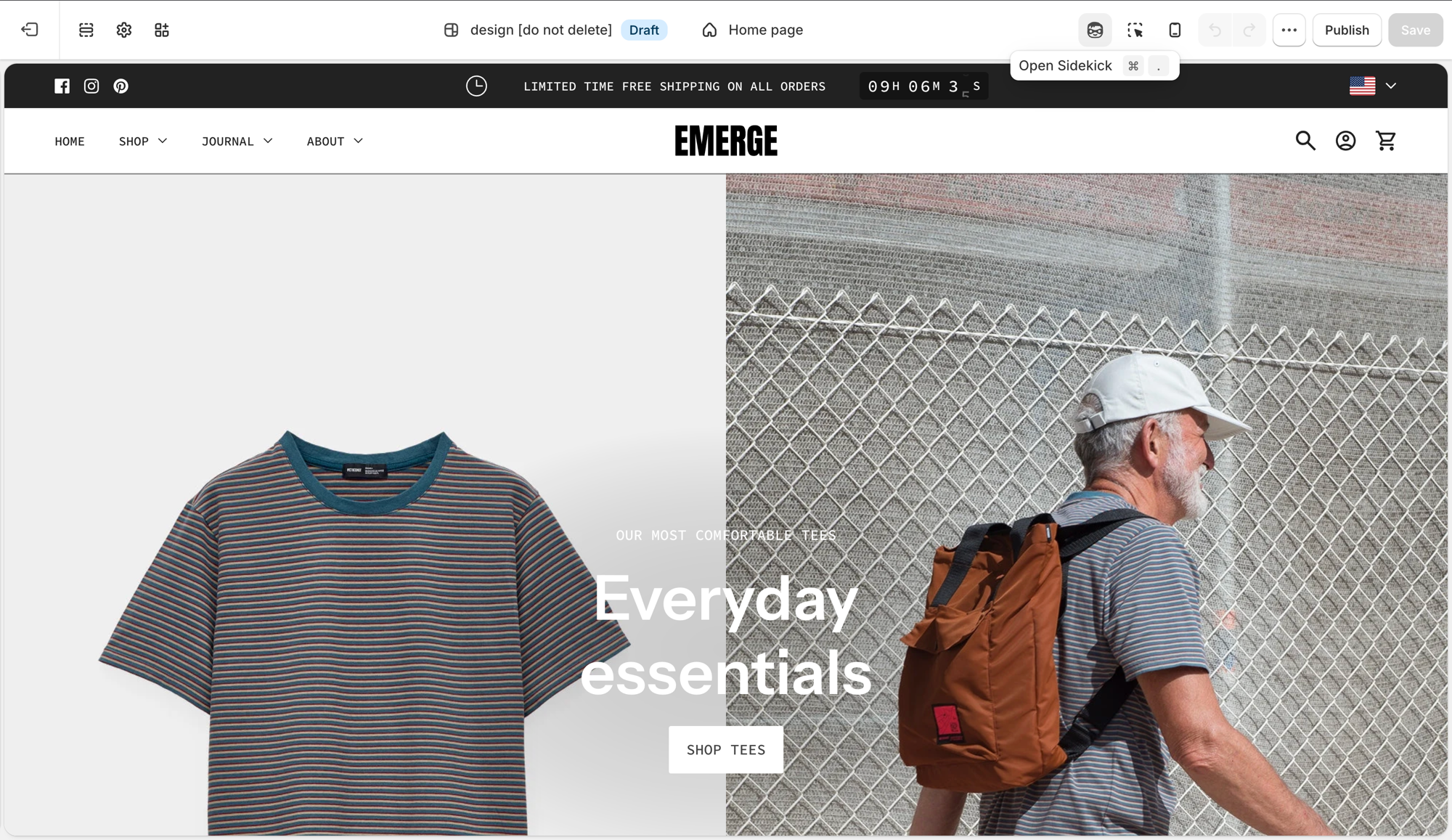
Open Sidekick from the theme editor toolbar (top right, next to the device preview icon), or press ⌘. (Ctrl+. on Windows). Give it a topic and your products, and it drafts FAQ copy for you.
"Write 5 FAQs about shipping and returns for a skincare store."
It produces question-and-answer pairs you can paste into rich text blocks or refine before publishing. Faster than writing every row from a blank field, you still edit and approve the final wording.
Troubleshooting
- Row is empty: you chose Row content from page but didn’t pick a page, or the page has no body.
- Every product shows the same answer: you typed static text. Connect a metafield if the answer should change per product.
- You wanted this on one product only: use an alternate product template and assign it to that product, or use metafields.