Working with templates in Beyond
A template is the set of sections for one kind of page (product, collection, page, blog). Create extras in Edit theme, then assign them in the Shopify admin. The default template is what anything without an assignment uses.
Edit theme → template selector → Create template; then assign it on the resource in admin → Template (right column, under Online store).
Product data, collection membership, and checkout are unchanged.
Info
Visit Shopify's help centre for an extensive guide on templates.
What a template controls
Templates can be created for:
- collections
- products
- blogs
- blog posts
- pages
Every type has a Default template. Pages still on Default pick up whatever sections you add there. An alternate template only applies after you assign it in the admin.
Open the template selector at the top of Edit theme to see which templates exist and how many pages use each one.
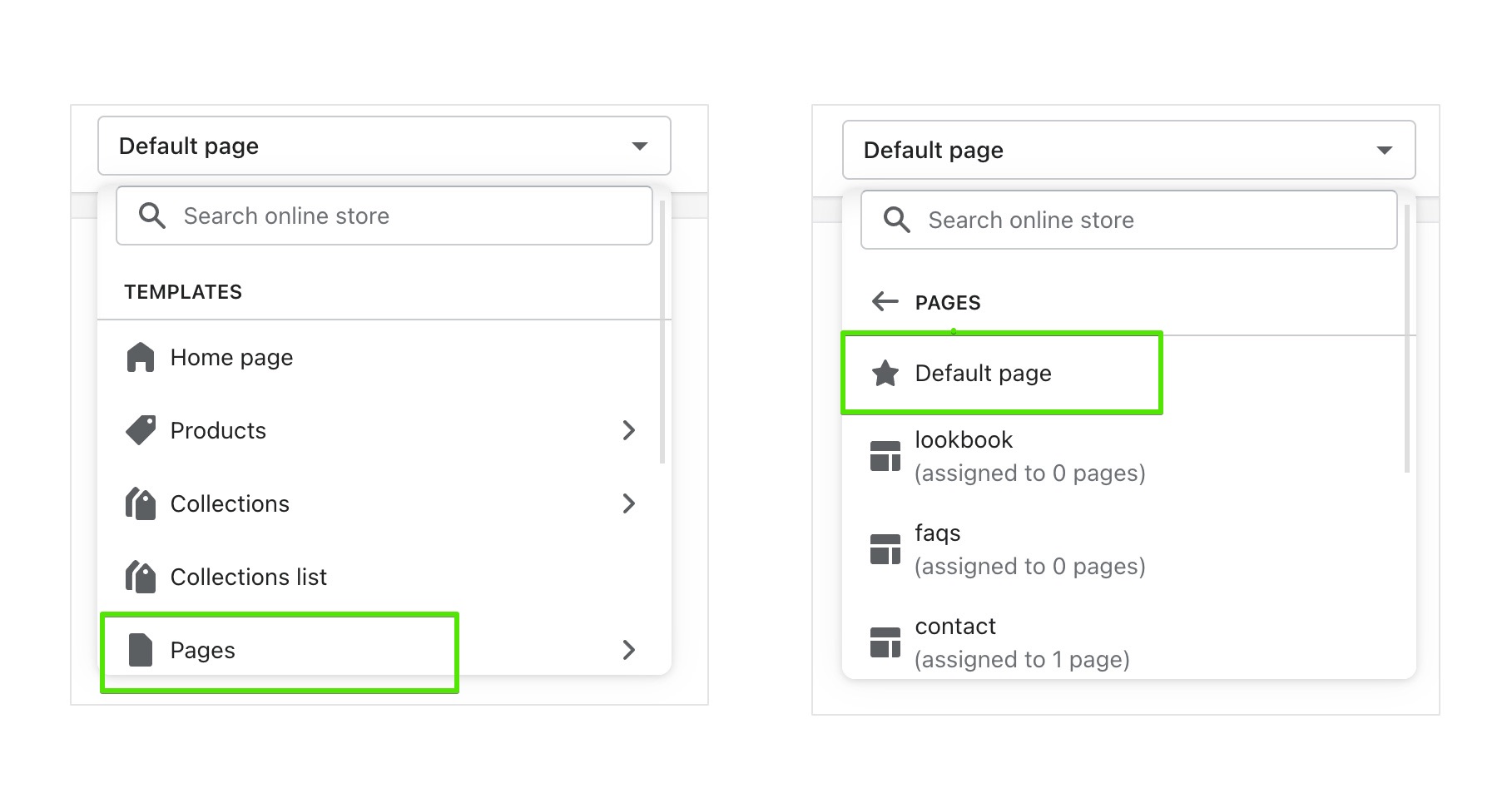
Add sections to the default template
Edit theme → template selector → the page type (for example Pages) → Default page.
Sections you add here appear on every page of that type that still uses Default.
Create a new template
- Edit theme → template selector → open the page type (for example Pages).
- Choose Create template.
- Enter a Name, pick a template to copy in Based on, then Create template.
- Add, remove, or rearrange sections on that template.
- Assign it in the admin (next section). Creating it in Edit theme does not apply it.
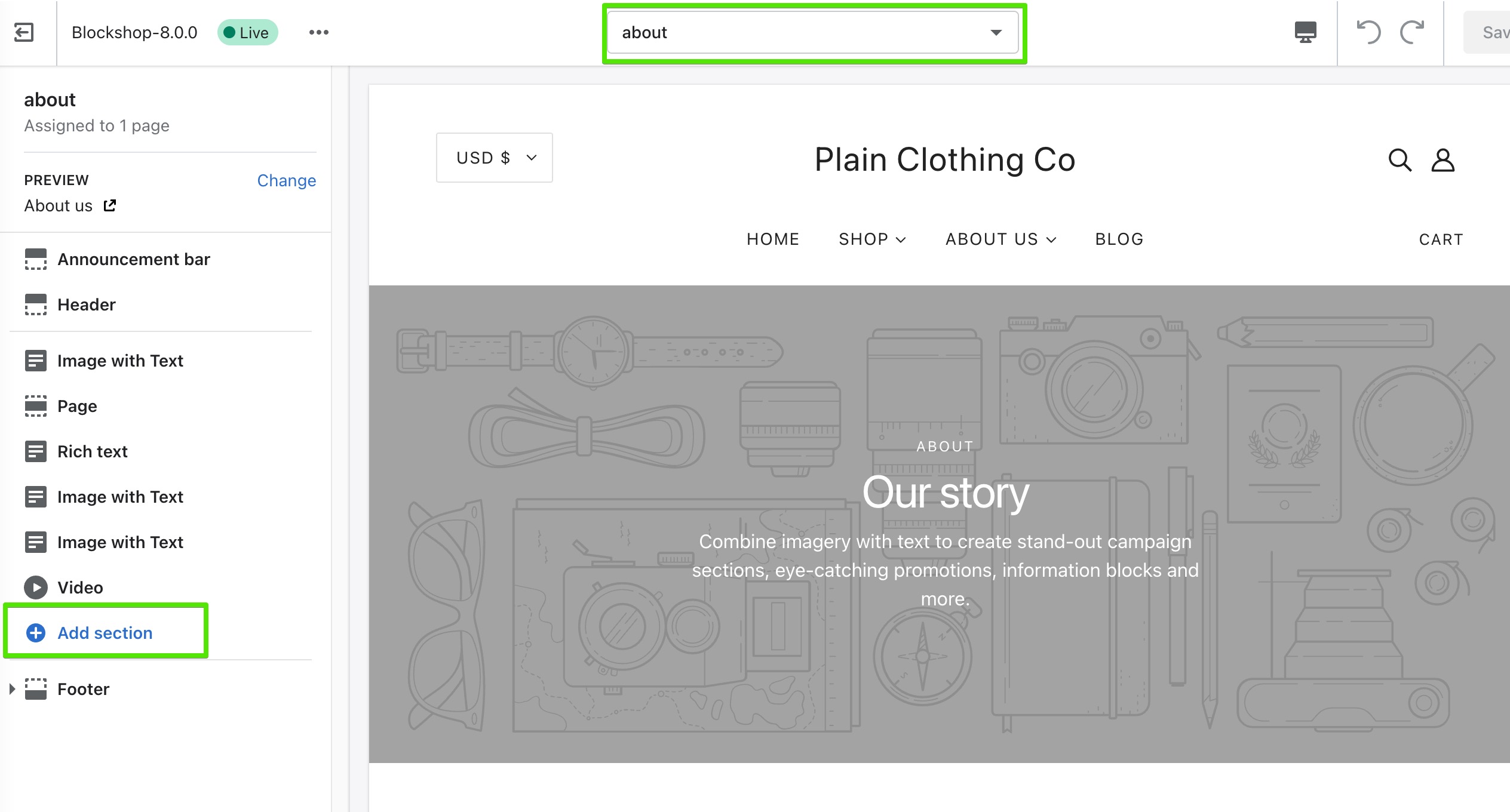
Pre-built page templates
Themes include about, contact, faqs, and lookbook under Pages. Open one in the template selector and change its sections; you do not need to create those from scratch.
Assign a template
Open the page, product, collection, blog, or article in the admin. In the right column, under Online store, choose it from Template.
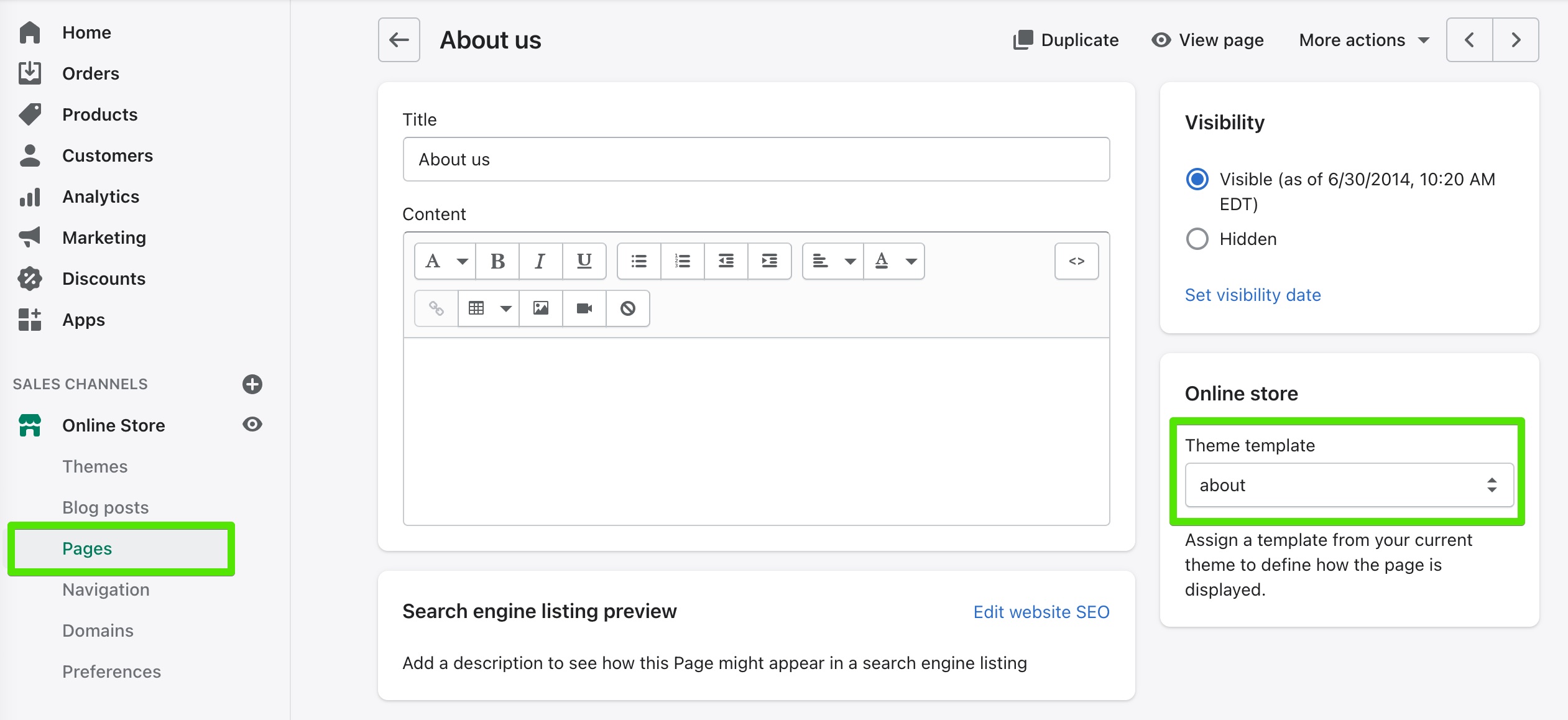
Note
Alternate templates only appear in the admin if that theme is published, or if you are assigning while previewing the unpublished theme those templates live on.
Troubleshooting
- You created a template but the page didn’t change: assign it on that page, product, or collection in the admin (Template, right column). Creating it in Edit theme is not enough.
- Every product picked up the new layout: you edited the Default product template. Create an alternate and assign it only to the products that need it.
- Template missing in the admin dropdown: the theme must be published, or you are editing a different unpublished theme than the one assigned.