Using color swatches with your products in Emerge
On current versions, swatches are Shopify’s native color entries (product category + category metafield). The theme only turns them on (Round or Square). You do not pick swatch hexes in Theme settings → Colors anymore.
Products → category and category metafields; then Edit theme → Theme settings → Swatches. You can also set swatches on the product section or Featured product.
Inventory, checkout, and filters (Search & Discovery) are unchanged.
To use Shopify native swatches, configure product categories and category metafields.
Step One: Add a product category
A product category is selected from the pre-defined categories in Shopify's Standard Product Taxonomy. This is essential for:
- Unlocking product attributes (category metafields) that map to each product category.
- Managing your products better within Shopify, aiding in automated collections or filtering.
- Ensuring accurate tax rates are applied at checkout based on product categorization.
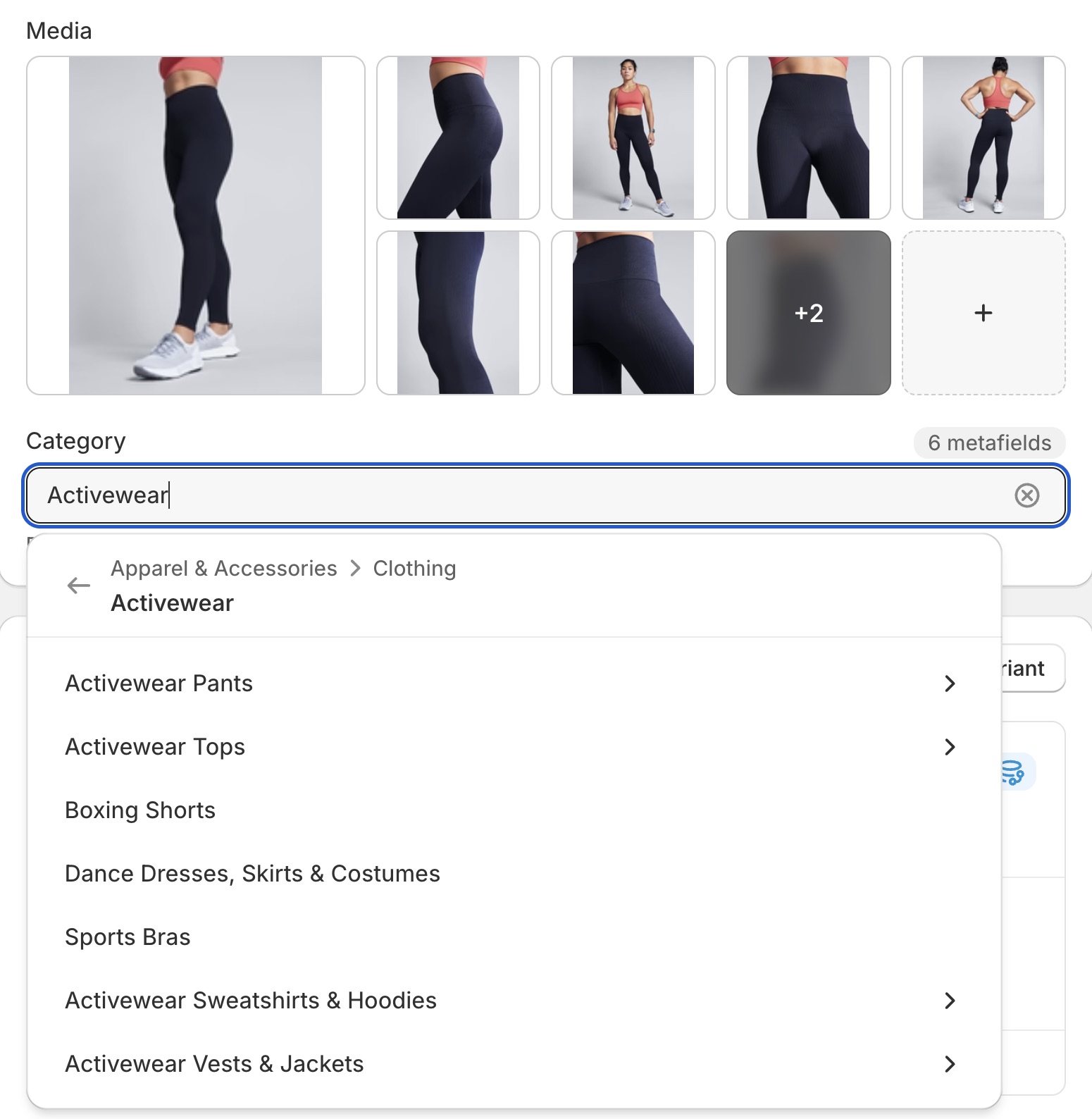
Example Category: Apparel & Accessories > Clothing > Clothing Tops > Shirts. You can add color swatches for any category metafield with the color product attribute.
To Add a Product Category:
- From your Shopify admin, click Products.
- Click a product.
- In the Category section, select Apparel & Accessories > Clothing > Clothing Tops > Shirts or another category with the color category metafield.
- Click Save.
Step Two: Add and edit entries for your category metafields
After adding a product category, you can add entries for your product's variant option values.
To Edit or Add Entries:
- From your Shopify admin, go to Products.
- Click the product with the category metafields you want to edit or add.
- To Add an Entry from Default Entries:
- In the Category metafields section, click the category metafield, then click the entry you want to edit.
- Edit the fields as needed.
- Click Save.
- To Add a Custom Entry:
- In the Category metafields section, click the category metafield, then click Add new entry.
- Fill out the fields for the entry.
- Click Save.
Step Three: Connect your category metafields to variant options
In this step, you connect the category metafield for color (or any other category metafield as needed) to your product variants.
To Connect Category Metafields:
- From your Shopify admin, go to Products.
- Click the product you want to edit.
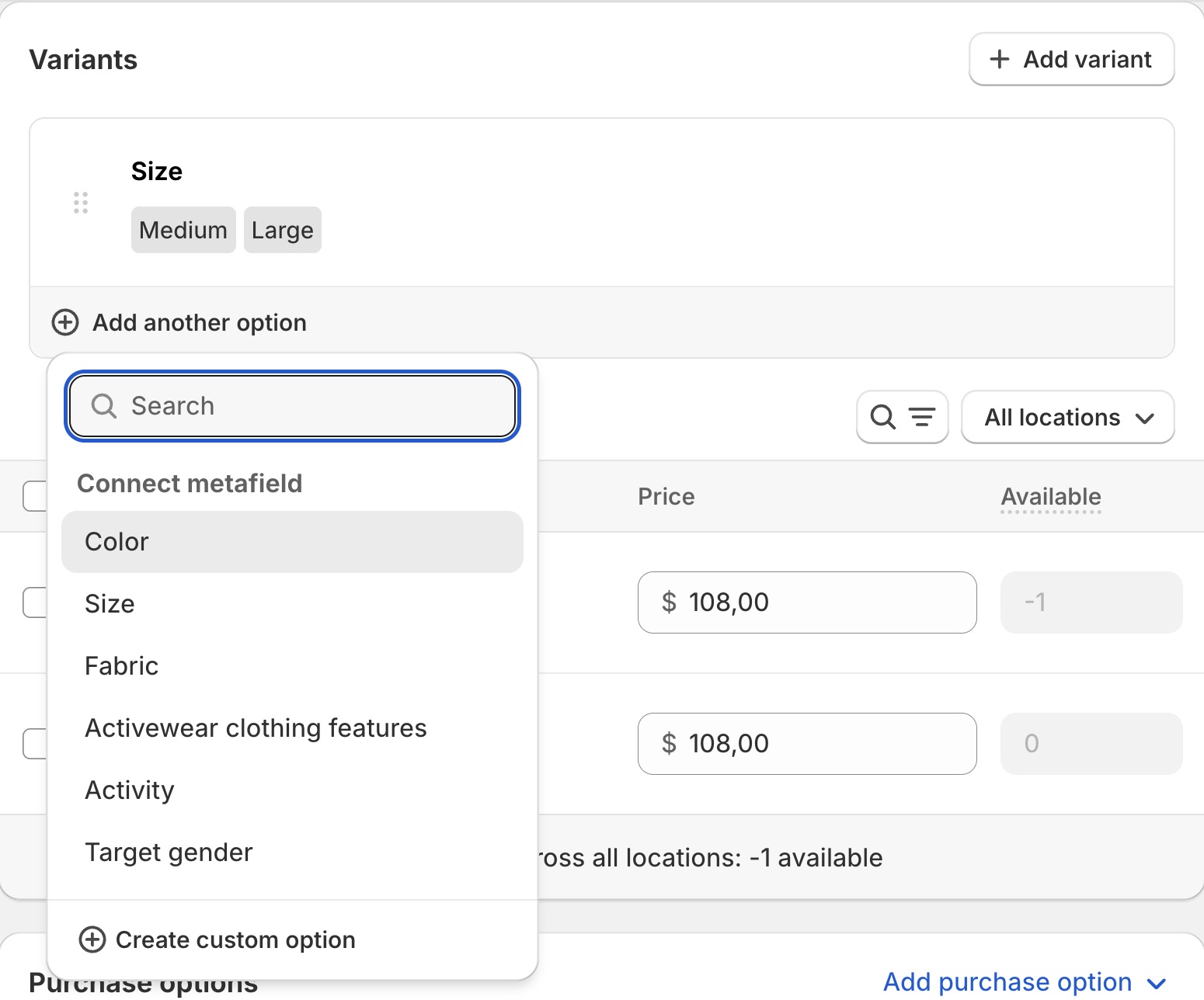
- In the Variants section, click + Add options like size or color.
- If a category metafield is available to connect to, select it. The option values will auto-fill with any entries you've added to the category metafield.
- Optional: To add custom option values, click Edit, then click Add new entry. Fill out the entry fields and click Save.
- Click Save to save the product.
Step Four: Enable swatches at the theme level
Swatches can be enabled in Edit theme → Theme settings → Swatches. Choose Circle or Square (or None to turn them off). Size on the product form and on the grid are separate sliders in that same group.
You can also set swatch type on a product section or Featured product.
When enabled, the theme will turn configured options into clickable swatch selectors.
Troubleshooting
- No chips, still a dropdown: Swatches is set to None in Theme settings (and on the product section); or the variant option is not connected to the color category metafield.
- Chips are the wrong colors: edit the category metafield entries in the product admin, not Theme settings → Colors (current versions).
- Grid has swatches, product page doesn’t (or the reverse): Theme settings → Swatches and the product section each have their own type control; set both.
- You are on an older theme: skip to Legacy theme versions. Hex lists in Colors or
swatch-colors.liquidonly apply there.
Legacy theme versions
Color swatches can be enabled in multiple places:
- In the Product Page(s) under the Sections tab
- On the Home Page, inside the Featured Product section under the Sections tab
- In the Theme Settings tab, under the Product Grid section
When enabled, the theme will automatically turn an option titled "color" into clickable color swatches.
The default colors are set as standard CSS colors. For example, "gold" is defined as #ffd700. The complete
list of standard CSS colors can be viewed on MDN.
Non-English themes
- "Color" will be translated according to your
locales/*.jsonfile. For example, if you desire "couleur" to be the option with swatches, be sure to translate any instance of "color" insidelocales/fr.jsonto "couleur" - Non-english colors such as "rouge" will need to be added manually as defined below in Adding custom colors
Adding custom colors
Default colors can be overwritten with values defined by the store-owner. In addition, values not defined as a CSS color can be added.
Versions with swatch settings inside Theme settings > color
On Emerge versions 6.0.0 to 7.0.1, swatch color settings can be found inside the Color submenu inside the global theme settings.
If you want to assign the color value deep red to the color value rgb(131, 45, 39), you'd add the following line to the Color swatch configuration textbox:
deep red: rgb(131, 45, 39)
Formatting must be exact
- each rule must be on a new line
- the name and value are separated by a single colon (":") character
- the value can be defined as either a hex or RGB value
- colors that don't follow the above format will revert to their default values
- use a tool like Adobe Color if you need help determining which color value is appropriate for your product