Add collection page promotions in Blockshop
Promotional tiles sit inside the collection product grid. Add them on the collection template, not in Theme settings → Colors.
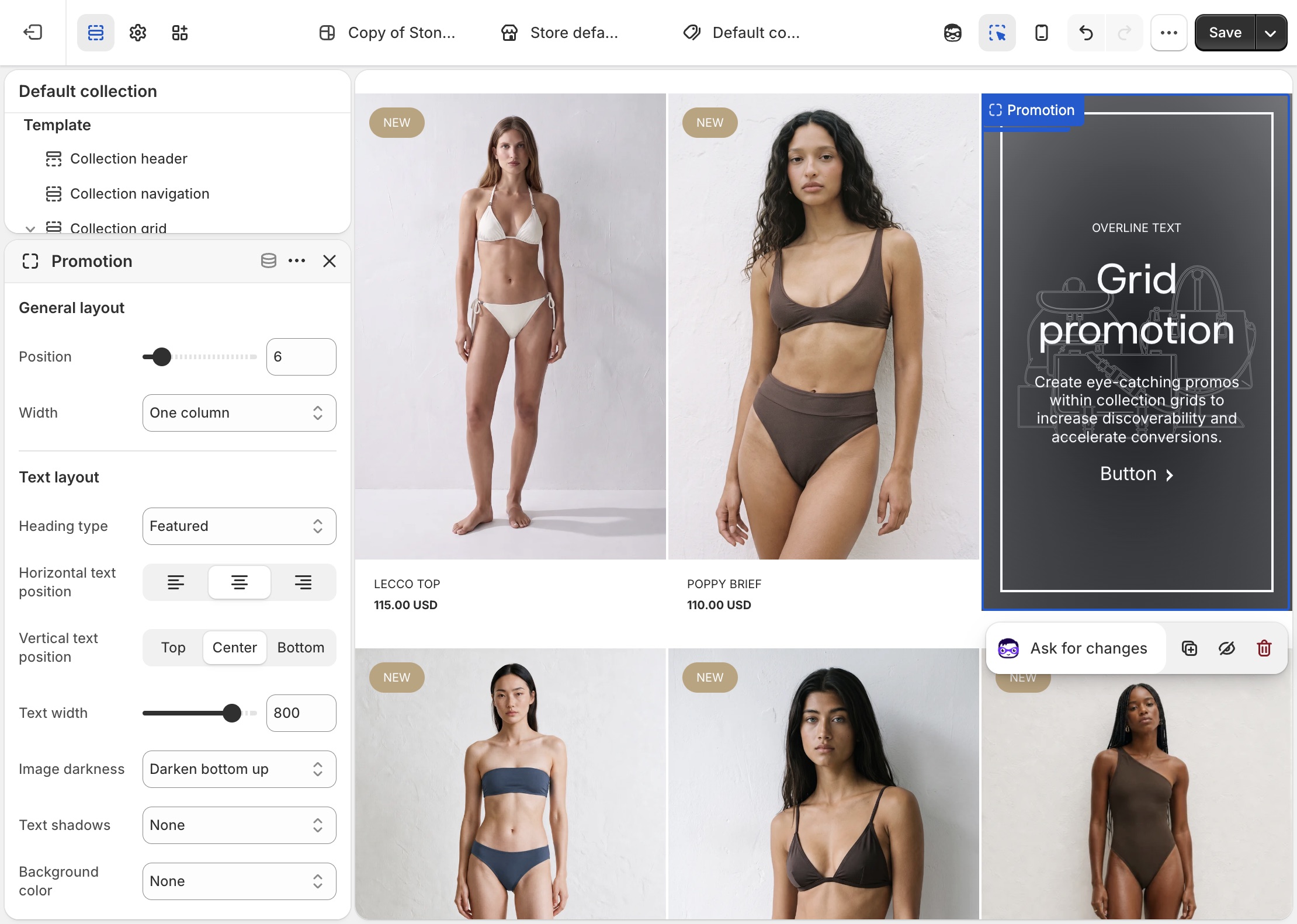
Edit theme → collection template → Collection grid → Add block → Promotion.
Which products are in the collection, discounts, and checkout are unchanged.
Compatibility
Collection promotions are available in Blockshop versions 7.0.0 and up.
Promotional blocks can be added into Collection page grids to promote sales, collections, product information and more.
To add a collection promotion, navigate to the collection page settings, under Collection grid → Add block → Promotion. Use the settings to configure the position, size and style of individual promotions.
Promotions that are too wide for the product grid
Be sure that promotions have enough space to render inside the product grid. For example, a promotion inside a grid that is two columns wide should have a maximum width of two. Although the promotion will render correctly if the width is wider than the space available, it could effect pagination.
Troubleshooting
- Promo missing on one collection: you added it on a different collection template, or that collection uses another template. Assign templates in the collection admin.
- Grid looks broken / pagination jumps: the promo is wider than the column count. Lower the promo width so it fits.
- You wanted a banner above the grid: use a section above the collection grid (Image with text overlay, etc.), not a grid promotion.