Enabling product filtering in Blockshop
Collection filters on current Troop themes are Shopify’s native filters. You must install Shopify’s free Search & Discovery app first. You configure filters in that app, not in Theme settings → Colors or a tag list.
Shopify admin → Search & Discovery app → Filters. The theme only displays what that app publishes.
Product tags alone do not create filters on current versions. Checkout and other apps are unchanged.
Info
For the full Shopify walkthrough, see enable product filtering.
Steps
- Install Search & Discovery from the Shopify App Store if it is not already installed, then open the app in Shopify admin.
- Open Filters and add the filters you want (for example Availability, Price, Color).
- Save. Preview a collection page in Edit theme, not the homepage.
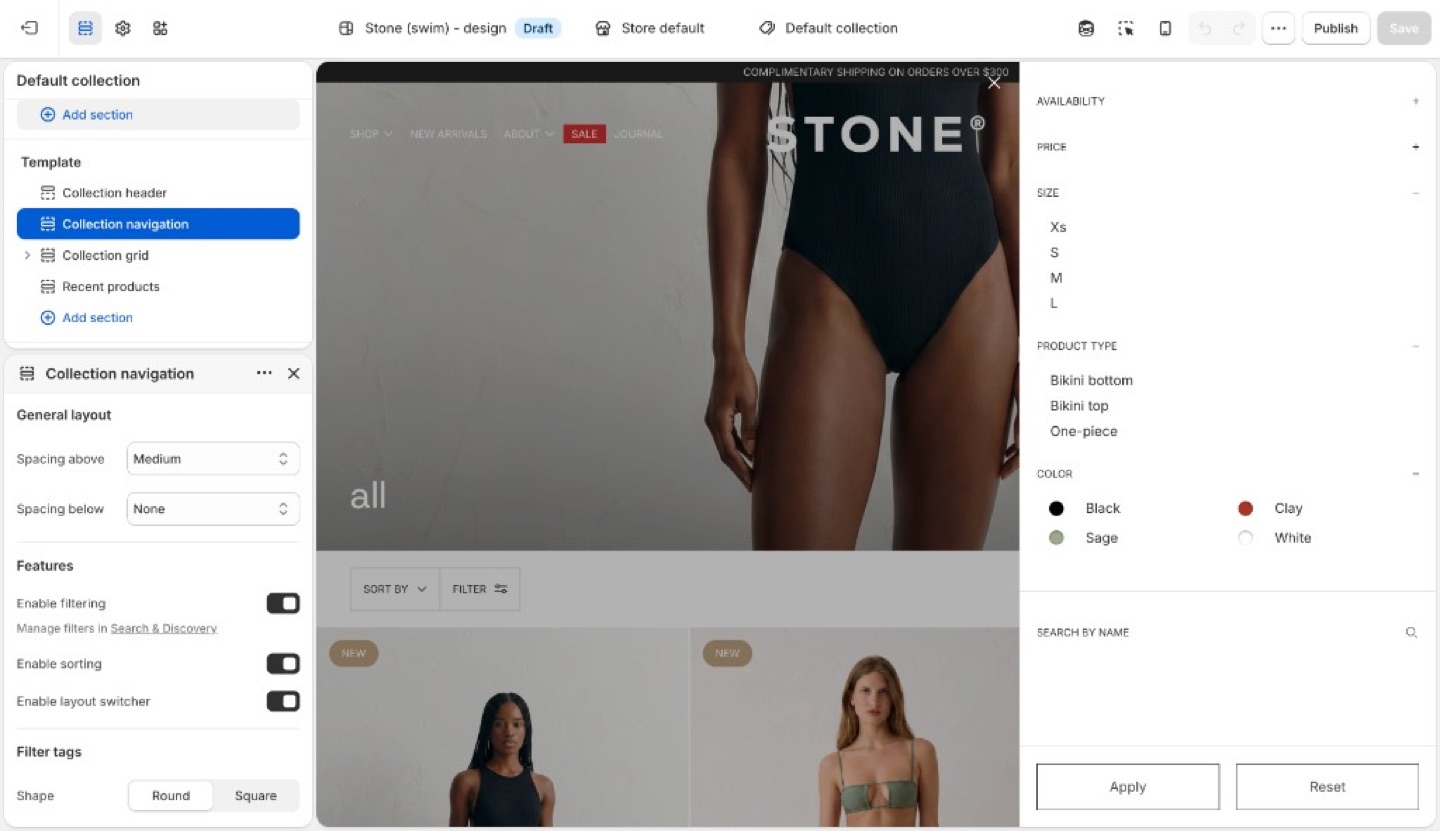
- If the Filter button or drawer is missing, open the collection template in Edit theme, select Collection navigation, and turn on Enable filtering. You can also turn on Enable sorting and Enable layout switcher there. Filter tag Shape (Round or Square) is in the same section.
Filters need products that actually have those options or metafields. Empty filters do not appear.
Troubleshooting
- No filter UI at all: Search & Discovery is not installed, you are previewing the homepage, or Enable filtering is off in Collection navigation. Open a collection template and turn it on.
- A filter you added is missing: no products in that collection have that option/metafield, or the filter is set not to show when empty.
- You are still adding product tags expecting a Refine list: current versions use Search & Discovery filters, not tag groups.