Add a size chart to the product page in Maker
The theme can open a Shopify page from the product form. You write the chart on that page; the theme only links to it.
You can add a size chart on the Product page or the Featured product section in two ways:
- Size guide button block: a standalone button you place in the product form
- Variant picker block: a link beside a matching variant option (for example Size)
Create the chart page in Online Store → Pages. A size-chart app replaces this feature, disable the theme size guide if you use one.
Chart page
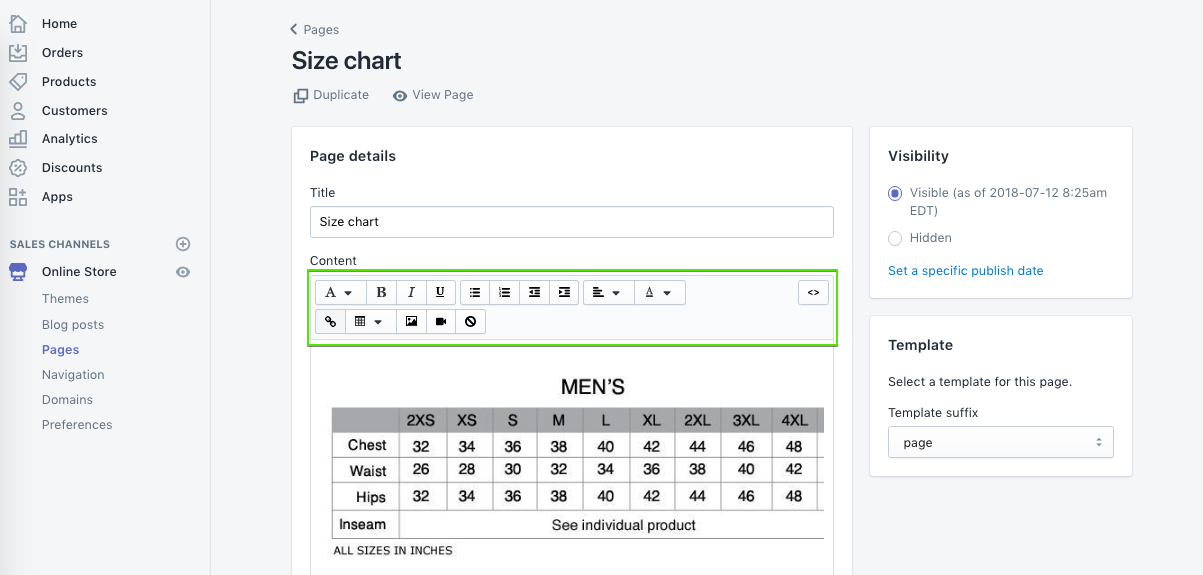
In the example below, we created a page called Size chart and referenced it in Page content. That page holds tables (and can hold images or other text).
To quickly create HTML tables for size charts, try a responsive table generator.
Size guide button
Version availability
The Size guide button block is available in Maker versions 13.3.0 and up.
Edit theme → product template or Featured product → Add block → Size guide button. If the block is already in the section, click the eye icon to show it. Select a page in Page content, then choose a Button style.
The button does not require a Size variant. Use it when you want a size chart on products without options, or when you want a full button instead of a link next to the picker.
If you use this block, turn off Enable under Size guide on the Variant picker block so two size-chart controls do not stack.
On these versions the chart opens in a drawer.
Variant picker
For the variant picker size chart to appear, the product must have at least one variant option. You can configure this in the Shopify admin product editor:
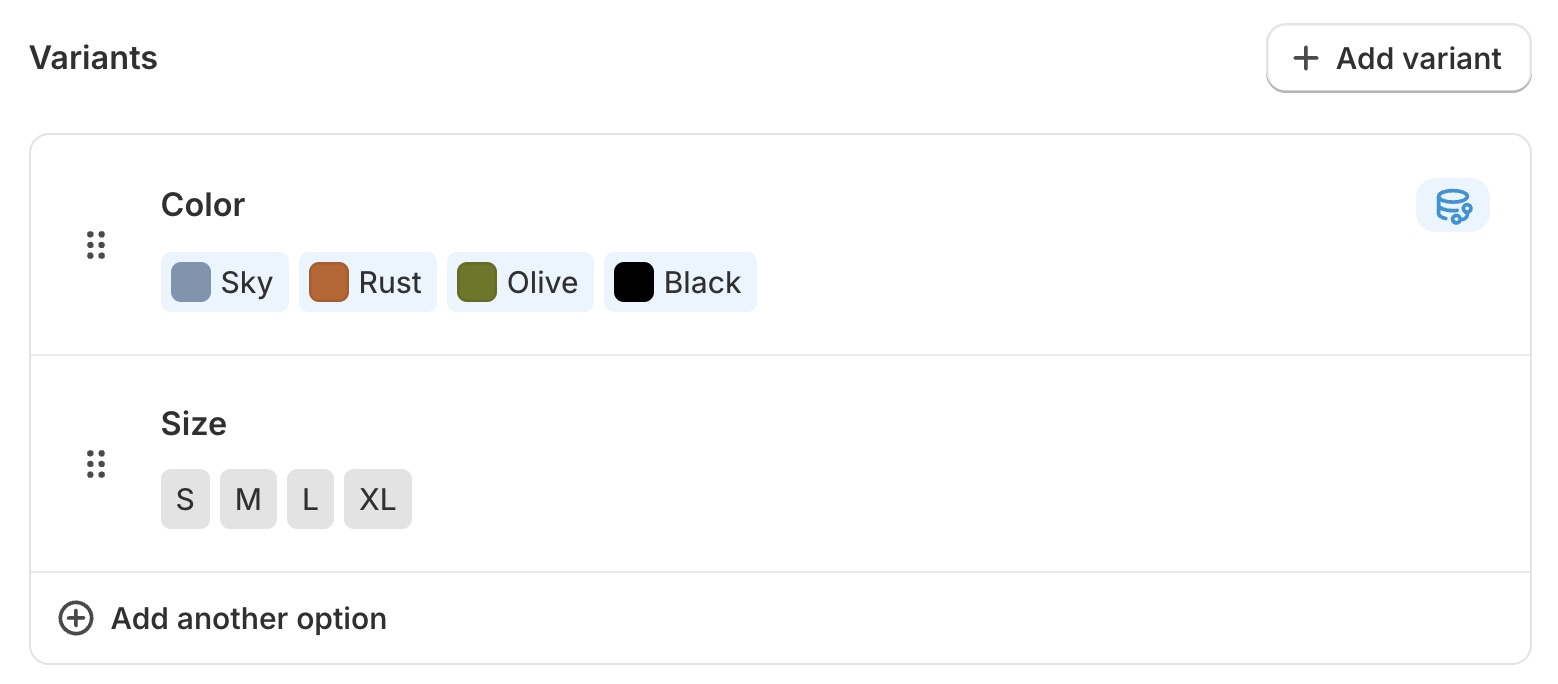
In the theme editor, open the Product page or Featured product section, expand the blocks list, and locate the Variant picker block. If it is hidden, click the eye icon to show it. If it is not there, click Add block and select Variant picker.
Match the variant option (for example, "Size") in the Link from option text field. Then select a page using the Page content setting.
Edit theme → product template → Variant picker block → Link from option and Page content.
Variant options are set in Products.
Change the size chart button text
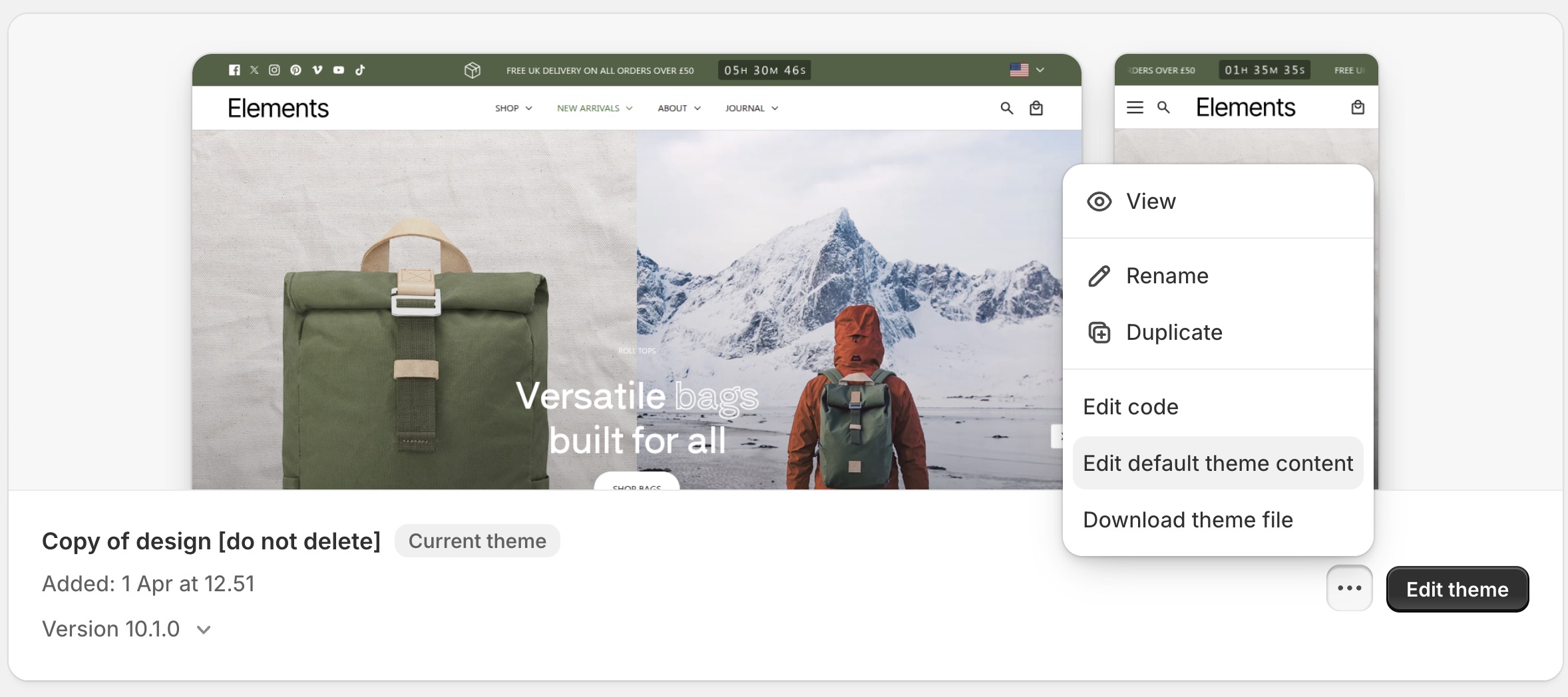
You can change the size chart button text in Edit default theme content > Products.
Read more about changing default text.
Troubleshooting
- Size guide button is missing from Add block: the theme is below the versions listed above. Use the Variant picker method, or update the theme.
- No size chart link next to Size: the product has no variants; Link from option does not match the option name (for example
SizevsSizes); Enable is off; or the Variant picker block is missing. - Wrong / empty drawer or popup: Page content is unset, or the page has no body.
- Two size charts appear: both the Size guide button and the Variant picker Size guide are enabled. Turn one off.
- An app chart appears instead: disable the app embed, or turn off the theme’s size guide so they do not stack.
- Button says the wrong words: default theme content → Products.